Designing assets for Apple’s new App Store display options
With the release of iOS 27, App Store Connect introduced new options for displaying custom assets at the top of your app’s App Store page, and in place of the first three screenshots in the search results page.
I think this is an underrated opportunity to stand out right now, since not many apps appear to use these new options.
I have created and uploaded custom assets for my read-later app Flyleaf and I want to talk about what I’ve learned, and what works well and what doesn’t in my opinion.
First of all, you need to upload any assets you want to use in App Store Connect, in the new “Content library” section. This is all fairly self-explanatory, but I have some tips:
- The upload will fail with a nondescript error message if the dimensions of your file are not exactly as required. The safest way I found to get this right is to download one of the templates from developer.apple.com/app-store/asset-best-practices/ and use them as a basis
- The templates also include a “safe area” layer. It’s not obvious, but this is only the smallest part of the image that is guaranteed to be displayed. But it’s way tighter than the area that will typically be visible to users, even on small devices.1
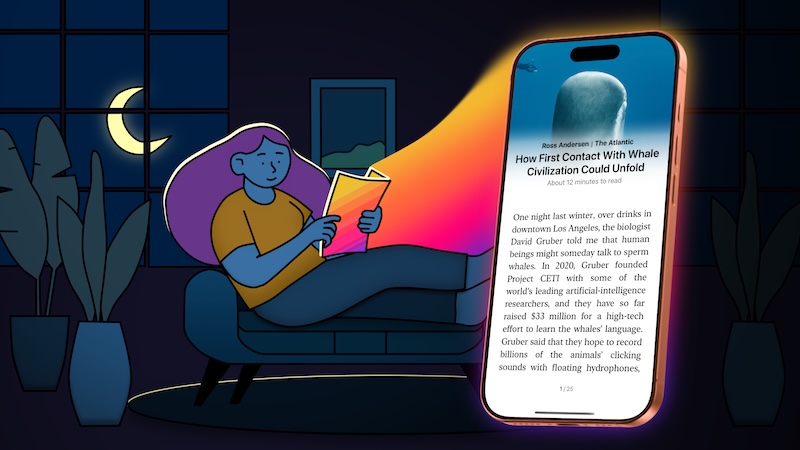
- On the other hand, pay attention to the composition of your asset, because the App Store will not just display the largest possible portion of your asset – it will always be somewhat zoomed in.
- The best way to experiment with how the different devices will frame your asset is to try it out in the preview provided by App Store Connect. The preview matches the final result visitors will see pretty well, in my experience.
- Annoyingly, any asset you want to preview first has to be uploaded and reviewed by App Review. This can take several hours, but at least you can send in assets for review without updating your app. Anyway, I would prepare several asset variants upfront. That way, if one doesn’t look right in the previews, you already have alternatives ready.
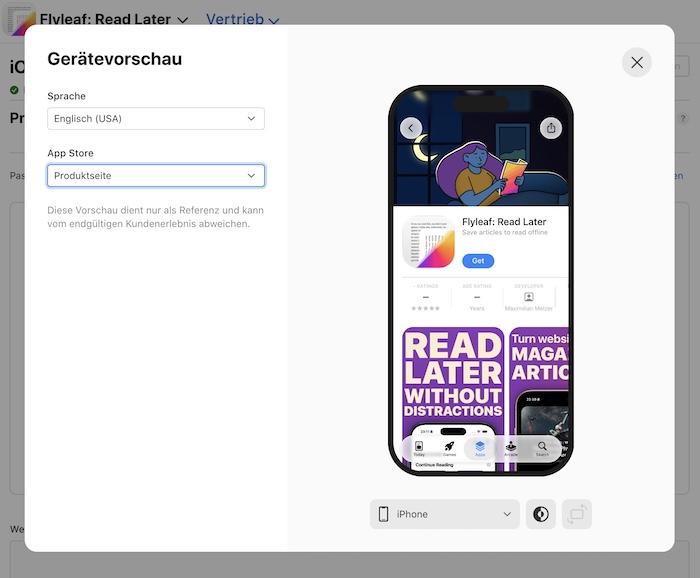
Let’s talk about the actual content of the assets. I think you should use different kinds of artwork for the search results and the product page
Custom assets for search results
In search results, the custom asset replaces the row of screenshots that would have been displayed previously. This is a great opportunity to craft an asset that shows off your app in its best light. You should probably include at least one screenshot in the asset, because otherwise users will not see what your app looks like until they tap your listing.
On the other hand, you probably should not include your apps name or icon in the asset, because they’re already displayed right above it. If you had text in your hero screenshots, you could include it here, as well.
Here is what I went with for Flyleaf:
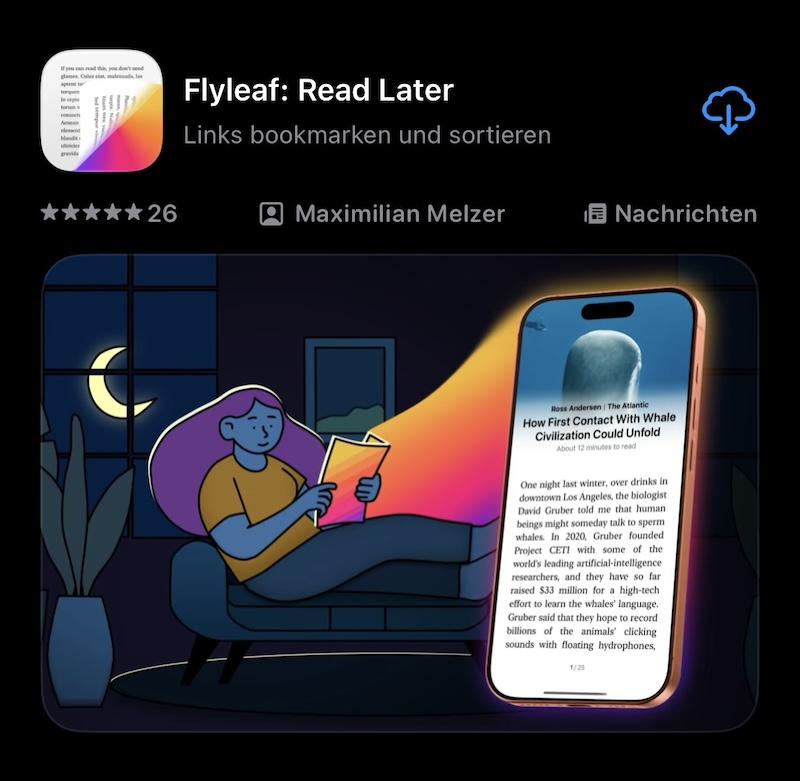
And, to get a feel for how the image is cropped, here is the source image:
Custom assets for the product page
The product page is a slightly different matter. This one is less about showcasing your app and more about conveying the “vibe” or theme of your app.
You probably don’t want your hero asset to distract too much from the actual content of your product page. Also, because the product page has its own screenshots, there is not much point in including a device or screenshots in the product page header asset.
This is the image I went with for Flyleaf:
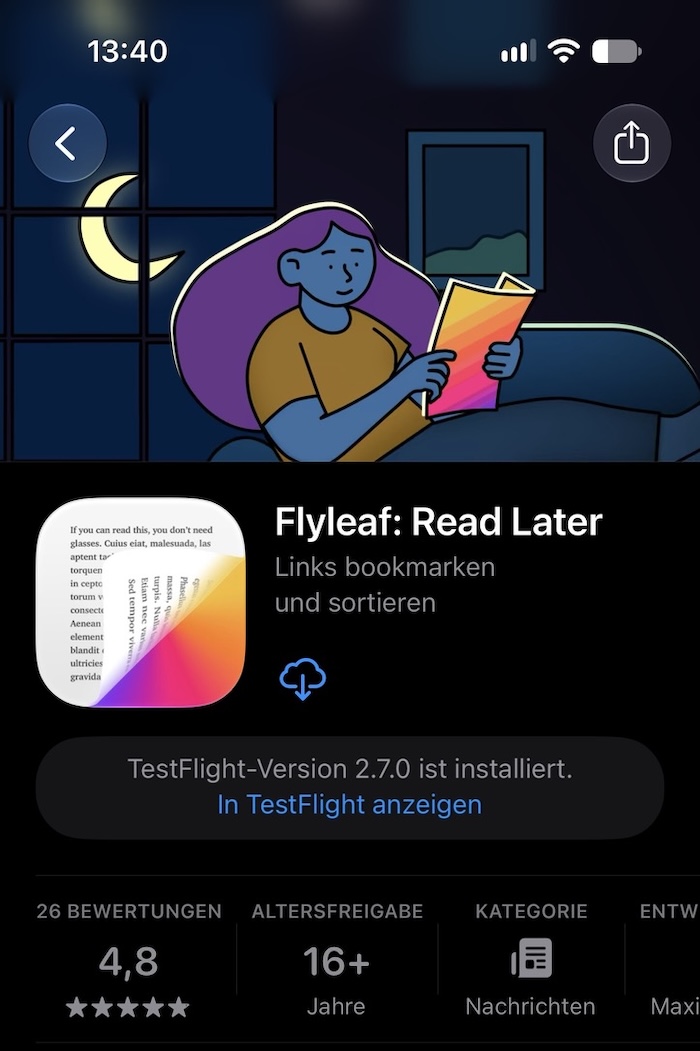
One thing to watch out for: The top of the asset behind the iPhone notch will annoyingly be blurred and mirrored instead of just using the image data that’s clearly already there. So don’t put anything too distracting at the top of your asset, I guess.
Again, here is the source image:
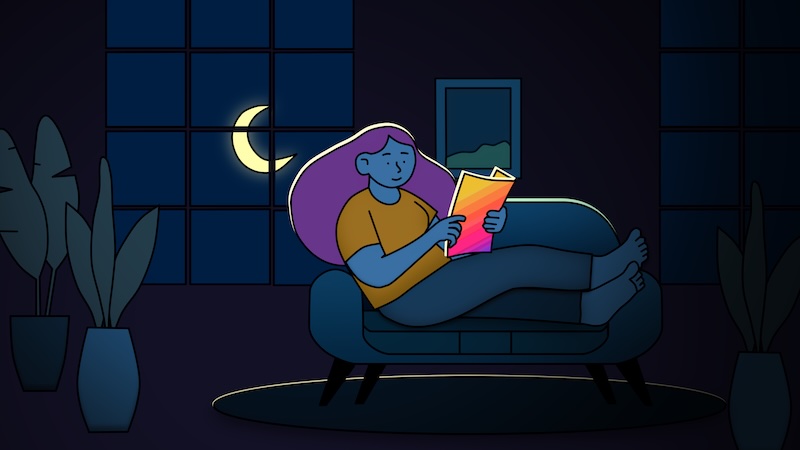
Another very tasteful example is this one for Pockity by Nikhil Nigade:
You can see these assets in action on Flyleaf’s App Store page. Give the app a try if you haven’t already!
iPhone, iPad and Mac

-
I think it’s only when you pull down as far as possible on a product page that the image gets zoomed in to the dimensions of the safe area. ↩